Showing posts with label filter. Show all posts

Saturday, April 25, 2009

Filtering in Active Directory Administrative Center

This is the post I have wanted to write for a long time. I had to wait until the designs had been shown in public (see bottom of this post). This is also the latest in a series on filter designs.

Let’s get back to our original goal of…

…making a filtering mechanism that works well for the majority of cases. ‘Works well’ means that it is easy to use and complete enough to cover 95% of the scenarios of the people who use our products. Getting deep on Filtering

We have looked at a number of different examples of Attribute based filtering and we need something that is as good as the Zune filter yet is much more scalable.

Enter the design for Active Directory Administrative Center. This is the application in all it simple might and glory once you have navigated to a folder (called Organizational Unit in Active Directory) full of user accounts.

filterQuery2

In the following screens we will focus in on the list area:

image

  1. A: Title. Tells you the name of the folder and number of items in the folder or the number of items in the filter
  2. B: Free text filter. Filters across most attributes
  3. C: Add criteria button. Lets you add rules or attributes to your query
  4. D: Saved queries.
  5. E: Button for saving the current filter.

If you type in the free-text filter we filter the list as you type and update the title with (“number of matching records” of “total number of records”):image

We also change the background color to indicate that the list is filtered.  Hit ESC to clear the free-text filter. CTRL+E will set focus on the free-text filter.

We added the free-text filter because most times you can get by with a quick search even when you have a couple of thousand records in a given folder. If you have more than a couple of thousand records you may need more advanced filtering. The ‘Add criteria button’ provides a set of rules (see Different kinds of Filtering) and a list of attributes to filter on. Active Directory Administrative Center lets you filter on about 20 attributes. From a pure design point of view that number could be much bigger. From this applications’ perspective, we went through rounds of user testing to figure out what the right attributes were to include and it did simply not make sense to include all 150 or so attributes.

We added the idea of rules for two reasons. First of they are a helping hand in what we expect a lot of people to be filtering on all the time such as for instance “users with disabled/enabled accounts” which is really just a shortcut for “Object type = user AND Account state = disabled/enabled”. Rules can also be a way to package a filter that would otherwise not be possible to make with this design. More on that later.

The ‘Add criteria button’:image 

As soon as we add the ‘users with disabled/enabled accounts’ rule the filter is updated. image

To get the enabled accounts, simply click on the link “disabled” and you will get a dropdown with possible values.  And we could of course have added more than one rule and several attributes. Here is just one more attribute:

image

Notice the ‘and’ in the beginning of each line? We automatically AND the free-text filter and the rules and attributes together. this gets us to the core of this filter design:

Criteria on different attributes are AND’ed and Criteria on the same attribute are OR’ed.

Here is an example of this design rationale in effect:image

In the example above we have created a filter for

((Name starts with ‘t’) OR (Name starts with ‘a’)) AND (Type = User) AND (Free-text contains ‘hund’)

We do not allow you change the Boolean operators, and we do not allow you change the attribute once it has been added. you can remove a criteria (click the red x) and add new attributes. We do not allow you change the Boolean operators or change the attribute because that way we can take care of grouping automatically and prevent filters where you get the too much due to wrongly grouped ORs (the Cartesian product) or nothing at all due to wrongly placed ANDs.

On one hand we have avoided the raw Boolean logic exposed in products such as Winamp which we know most people have a really hard time getting right, and on the other hand we have avoided jumping through hoops as Itunes does or created a design that is inherently limited as Zune has done. 

We also have created a design that can take care of about 95% of the scenarios. And if 95% is too little there is room to improve it through rules that target special cases where a set of criteria across different attributes should be OR’ed. We don’t ship any of those in Active Directory Administrative Center. We could not come up with any even through extensive user testing.

What about the last 5%?

The Active Directory team has put a lot of effort into PowerShell in Windows Server 2008 R2 so if you need a really advanced filter you can always go to command line. The alternative would be to make a GUI design that covers all cases, but honestly, I don’t believe we could do that and still keep it usable. This is a trade-off, but by not designing for all edge cases we also don’t pollute the experience for the majority of people using the application.

A little more on this specific Design

I am sure you could implement the core design idea differently and still get a great design. The following covers some specific choices we made for this implementation of the idea.

To get the query shown above we first selected Name and Type

image

image

…and then added Name again…

image

The new criteria is inserted under the existing criteria for Name and indented and OR’ed.

image

This may seem like a round-about way of adding the same attribute twice, but we chose to do it this first of all because we believe most filters will only use the same attribute once, and second because this allows us to insert the second instance of an attribute at the right spot and hence both take care of grouping and get it to visually line up without having to move criteria around after you have already interacted with them.

If you are an Active Directory admin you may very well be working across multiple domains. If you have 2 domains, say ‘Corp’ and ‘Sub’ and you want to find users with expired accounts in the User OU of either domain, you can create the query anywhere, save it and reapply it in a different OU:

image

I hope you have enjoyed reading about filtering as much as I have enjoyed designing for it and writing about it and if you have comments or questions, please leave them here or catch me at Twitter @rulerbreaker.

Credits

Like all other designs this was a team effort.  A lot of people from our UX team (Twitter @MS_ITPro_UX) have contributed and it should go without saying that so have the great Program Mangers, Developers, and Testers who have worked on this.

Active Directory Administrative Center will ship as part of Windows Server 2008 R2 which means it is not out yet but has been presented at TEC and will also be touched upon at TechEd 2009 (session SIA326 “What Windows Server 2008 R2 Does for Your Active Directory”).

Saturday, March 14, 2009

Zune –on Filtering

Zune has, in my opinion, nailed the core insight in attribute based filtering: Criteria on the same attribute should be OR’ed and criteria on different attributes should be AND’ed.

There is no mentioning of AND or OR In the Zune autoplaylist UI. You also do not have to select between ANY or ALL as you do in ITunes. It is simply all built in and just works the way you would expect it to work.

Zune’s autoplaylist has two defining characteristics. First, there is a predefined set of attributes you can filter on. You cannot add additional attributes which means Zune does not need to expose groupings. Second, the dropdowns used to pick values to filter on automatically makes the ORs between the values.

Zune1

Below is a screenshot of the dropdown. When picking what album artist to filter on, you can pick multiple entries from the list.

Zune2

Here I have picked NOFX and the dropdown has added a semicolon to indicate that more can be added. Similar to typing in email addresses.

Zune4

You can also just type text in the dropdown which is the same as a ‘contains’ operator.

Zune6

Above we have created our example from previous posts:

(Album artist name is NOFX OR Offspring OR contains ‘Bad’) AND rating is Like

Zune5

When it comes to music players, I think the Zune autoplaylist UI is the best i have ever used. The only reason to not just copy it is really that its strength is also its weakness. It cannot be expanded to include a lot more attributes.

Next we will finally look at the filter in Active Directory Administrative Center.

Thursday, March 12, 2009

ITunes –on Filtering

ITunes, another media player, another attribute based filtering mechanism for dynamic playlists. And another solution to how you let people create complicated queries yet hide the complexity.

The Smart playlist UI in ITunes starts out much like other players letting you pick an attribute, operator, and type or pick an operand.

ItunesOperators

ITunes is different form other players however when you add more than one criteria. The top part of the dialog changes from “match the following rule” to “Match all/any the following rules” wich is of course shorthand for “AND all the rules together” or “OR all the rules together”.

ItunesRatingAllAny 

Assume we saved the playlist in the above picture as “All music above 1 or 2”. It would simply show us every song in our library not rated either 1 or 2 including unrated songs. Useful, but a little broad.

If we want to create a playlist of all Metal that is either unrated or rated above 2 stars we could not do that with matching either ALL or ANY of the criteria. If we chose all we would ask to skip songs that were rated both 1 and 2 stars and were of the genre Metal. Clearly an empty list because a song cannot be rated both 1 and 2. If on the other hand we OR them all together we would get all music because songs rated 1 would not be rated 2 and the other way around.

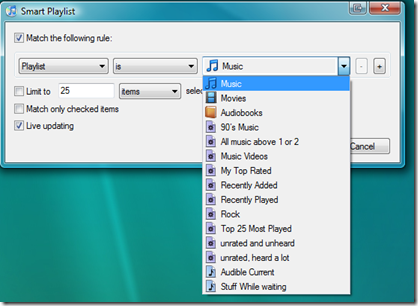
To overcome this problem without compromising the simplicity of the UI ITunes has introduced one of my favorite features when it comes to filtering in media players: The ability to use a playlist as a criteria in another playlist:

ItuneBasedOnPlaylists

This is a bit of a crazy feature, but very cool once you understand it. Each playlist essentially works as a reusable group of criteria which allows us to get our Metal playlist without the songs we have rated 1 or 2 stars:

ItuneBasedOnPlaylists2

I would expect people to object to this idea of reusable playlists  as being a strange or silly solution to the problem and I would not be surprised if someone brought forth the argument that it is convoluted and that there must be a better solution.

I personally think it is elegant and powerful. And useful in enterprise scenarios. Imagine that you were running a campaign targeting large companies in different countries. In Denmark a large company may be defined as one with more than 5.000 employees while large in the US may be defined as companies with at least 15.000 employees. With reusable criteria you could define “large Danish companies” and “large US companies” as separate playlists and reuse them in queries about your past sales, you current open orders, overdue invoices and so forth.

What’s next?

Next up is Zune. A limited/focused solution (pick your point of view) that in my mind is the most elegant solution so far.

Playlists in Windows Media Player –on Filtering

Like other media players, Windows Media player has an auto Playlist feature. WMP has also realized that providing people with raw access to Boolean logic will usually not resolve in a good experience and so has opted for a solution where it is very clear and easy how to add criteria, but as we shall see, it breaks down quickly if we try to create our example from WinAmp.

When we create an auto playlist we get this screen…WMPStart

and when we click on the green plus sign we get the standard 3 step filter design of

  1. Pick an attribute
  2. Pick an operator
  3. Write or pick an operand

WMP2

If you want to make a playlist for a band or a genre this works brilliantly. It is very easy to create for instance the playlist you can see below of “All songs by Goldfinger where my rating is at least 3 stars”.

wmp3

If, however, we were to create the same playlist as in the WinAmp example:

Artist is (NOFX OR Offspring) and Rating is at least 3

we would get in trouble. Windows Media Player ANDs everything within a group together. In the following example I wanted to make a playlist for Punk and Jazz rated at least 3 stars, but because the Genres are AND’ed the result will alwyas be an empty playlist because a song cannot be both Jazz and punk i.e. it cannot have two genres.

WMP_Genre1

Because every criteria within a group is AND’ed you must repeat common criteria across groups to get the expected result. Below I had to add the criteria for rating to both Punk and Jazz. Had I only added it to Punk the result would have been “Punk rated at least 3 stars and all Jazz” which is not what we want.

WMP_Genre3

What’s next?

Next we will look at ITunes and its interesting tricks and after that we will look at Zune and finally we will take a look at the Attribute based filtering in Windows Server 2008 R2 Active Directory Administrative Center.

Sunday, March 1, 2009

Playlists in WinAmp –On Filtering

WinAmp provides a typical attribute based filtering mechanism for creating smart playlists. But instead of just starting you off on your own, WinAmp does include a set of pre-canned queries that can help get you started.

WinAmpViewStart

If however, we dive into the custom filtering we get the standard 3 step filter design of

  1. Pick an attribute
  2. Pick an operator
  3. Write an operand

And we get to put AND’s and OR’s between the criteria. Lovely.

WinAmpViewBuildingSimple

In the above example the default OR will get us all Metal regardless of rating, all music rated at least 3 and all music from artists such as Manowar beginning with ‘Man’. That is a pretty broad playlist :)

The Advanced Mode

As with most old school attribute based filtering designs there is an advanced mode that lets you just plainly type a query into a textbox complete with its own syntax and all the other goodness that can be pulled out of the database.

WInAmpViewAdvanced1

WInAmpViewAdvanced2

The Query Builder

To help you compose the query WinAmp even has a query builder that has some interesting properties.

Lets create the a playlist that gives us songs by NOFX, Offspring or Bad Religion that are rated 3 or more.

First we create the criteria for NOFX

WinAmpQuery1

and then we add '”Off” and OR it to the previous criteria

WinAmpQuery2

which will interestingly put a set of parenthesis around the two criteria.

WinAmpQuery3

As you add another criteria with OR WinAmp will add yet another grouping making it

(((A has NOFX) OR (A has Off)) OR (A has Bad)

which is equivalent to

((A has NOFX) OR (A has Off) OR (A has Bad))

WinAmpQuery4However, when you AND a criteria WinAmp does not add a grouping

What works and what doesn’t work?

Ultimately we are going to see that for most filters it makes sense to OR and group criteria on the same attribute and AND criteria for different attributes. In other words, as long as we know what we are doing and are doing it sequentially, WinAmp does the right thing. As long as we are making criteria for Albumartist and we are OR’ing them together, WinAmp is right in grouping them. And when add a criteria from another attribute, in this case rating, and AND it to the query it should not be grouped in with the previous criteria.

If however we added NOFX and Offspring first, then AND’ed the rating of 3 and then finally OR’ed Bad Religion we would get

((NOFX OR Offspring) AND rating =< 3) OR (Bad Religion)

Which would include all songs by Bad Religion and not only the 3 or above rated songs. To change that we would have to remove the grouping around the rating and the first two artists.

The templates in the first screenshot like ‘recently played’, ‘Audio by genre’ or ‘60’ies music’ are also good ways of circumventing the fundamental problem with this design namely that you really need to know what you are doing in order to use it properly. And when all is said and done, I quite frankly find the automatic grouping more help in the advanced version than the lack of grouping in the supposedly simple version.

The only truly great thing about this design is that it is easy to share a smart playlist with a friend or on your blog by simply copying the full string. This kind of easy sharing is something that most filter solutions should include.

What’s next?

Next we will be looking at the query interfaces of Windows Media Player, Itunes, and Zune. All three have worked hard on the usability of their solutions and I think there are some mistakes worth learning from in Windows Media Player, some interesting ideas in Itunes and some great things to copy from Zune.

Saturday, February 28, 2009

Different kinds of Filtering

This is the third post about filtering. In this post we will look at different kinds of filtering.

Filtering is usually a good way to help people work with large data sets and depending on the kind of data and the goal there are at least the following kinds of filtering:

Indexing

Indexing such as tag clouds or alphanumeric filtering can be used as a simple way for people to narrow down the data set to a more manageable chunk and to help people focus on what they are interested in. Indexing is defined as only allowing you to filter by one tag/letter and is only really useful if people already know something about the data or what the tag/indexer means.

Multiple Tag Filtering

In Multiple Tag filtering you get to select more than one tag to narrow down the result set. Del.icio.us provides a great example of this kind of filtering:image

There is always an implied AND between the tags meaning that only results that have all the chosen tags will be shown. Del.icio.us implementation where you can remove any tag from your filter lends itself well to exploration of the data. In the above example for instance you could remove ‘ux’ and the explore what other topics there are articles about.

Faceted Navigation

Faceted navigation is one of my own personal favorite kinds of filtering because it encourages exploration and does not require you to know the data very well beforehand. To get faceted search to work it is crucial that the facets are only showing existing data i.e. if you are searching for MP3 players the price ranges should be derived from the actual price ranges and not let you select $1000 when the top price is under $500 (yes, seriously, $500).

image

Though it is a best practice to only show criteria that will lead to results you could get faceted search to work with links to empty results as long as you can predict the possible links. In other words, if you know that the display size for MP3 players come in 1.0”, 1.8”, 1.9” and so on and you don’t currently have any with 1.9” in stock you could still include the link and let people save that query as an agent, but you should not include 1.1”, 1.2” and so on, just because that is the logical numbering. In other words you should never allow people to get to a meaningless query.

The strength of faceted navigation is also its weakness. In domains where you don’t know the possible data values which is often the case in for instance computer management, you need a way to allow people to search for possible rather than actual values.

Attribute Based Filtering

Attribute Based Filtering is in its raw form really easy to program, because it really just exposes the database, and is hence seen in way too many applications. It is also really hard to make usable because it normally requires people to not only know the data but also understand AND, OR, and groupings. Having seen enough Development Mangers get Boolean queries wrong in Microsoft’s bug database has let me to believe that there really is no reason to expose the horrors of Boolean logic to anyone but maybe programmers.

WinAmpViewBuildingSimple

Interestingly attribute based filtering is the defacto standard way of making auto playlists in all the media players I have used. In many ways, I think this is a bit lazy and that those applications should really work towards faceted navigation based on your music collection. When I say ‘lazy’ it is because faceted navigation not only requires a design, but also that the application constantly monitors the data set and creates the facets. That requires a lot of programming.

From a design perspective, making faceted navigation work also requires a way to OR criteria together that is typically absent i.e. Artist is Dire Straits OR Mark Knopfler. Normally you would only be able to pick one facet from each category but to get playlist to be really valuable you want to be able to pick more than one genre or artist.

Rule Based Filtering

Rule Based filtering is best known from Microsoft Outlook and is a way of making attribute based filtering easier. Essentially rules are pre-made queries where people are only asked to fill out the operands.

OutlookRule2

If you for instance create a rule like: “with specific words in the subject” this gets translated to “with Word1 OR Word2 or Wordn in the subject” which means you cannot change the logic, the attributes or the operators.

Rule based filtering is both usable and powerful because it takes away much of the complexity of writing queries by pre-packaging the most likely used queries in the right format and can cover a large set of different cases. There will however always be cases that the pre-canned rules do not cover and for that you typically need attribute based queries.

Next we will dive into some existing implementations of attribute based filtering.

Getting deep on Filtering

This is the second post in a series on filtering. This is really getting into the gory details of filtering and may seem a little dry. Skip it if it bores you.

Terms and Definitions
  • Search: you start with nothing and get something
    • Think of web search. You start with a blank screen and get some results back
  • Filter: You start with something and get less
    • You have a full collection of music. By setting up a criteria you will see less than everything
  • Find: You start with something and move around in it
    • Try it in Word or in your browser. You find the first instance of your search string but you can still see the rest of the document.
Attributes, Operators and operands

‘Artist equals NOFX’ follows the normal pattern for a filter criterion on songs. When we break it down into pieces we will use the following terms:

· Attribute: Artist is an attribute just as Rating, Play count, and Release Year

· Operator: Equals is the operator. Typically filter criteria uses operators such as Contains, equals, above, below, and between.

· Operand: In the example above, ‘NOFX’ is the operand. Operand is just a fancy word for the value(s) we want to operate on.

Boolean filtering

At the end of the day, filtering is really about finding the right subset of data, and if you want to get in deep, you should read up on set theory. For this discussion that will not be necessary though. We don’t really care about mathematics and what people could possibly do, we care about making a filtering mechanism that works well for the majority of cases. ‘Works well’ means that it is easy to use and complete enough to cover 95% of the scenarios of the people who use our products.

You will nonetheless need to understand a little about AND, OR and grouping.

If you have a basket of apples, some green, some red, and those apples are of different sizes and weight, you can subdivide the apples into smaller groups by those properties. You could for instance pick up only green apples, or only red apples that are larger than a tennis ball. To express the criteria by which you picked the apples, the latter could be expressed as

Color is ‘red’ AND size = Larger than tennis ball.

Now say you weren’t looking at apples but bell peppers. They come in small, medium, and large and in Green, Yellow, Orange, and Red. Now if you are like me, you prefer small green ones. But if you are more colorful you may like yellow, orange, red in medium and large. To get those you would use the criteria:

Color is Yellow, Color is Orange, Color is Red, Size is Medium, Size is large.

Now, without any additional information about which information goes together you have effectively used an OR

Color is Yellow OR Color is Orange OR Color is Red OR Size is Medium OR Size is large.

and may end up with Small Yellows or Medium Greens. Actually, the only kind you will not end up with are small green ones, which is good because those would then be left for me :) but you clearly got more than what you intended.

However, if you only use AND you not get any bell peppers at all, clearly also not what you intended.

Color is Yellow AND Color is Orange AND Color is Red AND Size is Medium AND Size is large.

What you want is a mix of AND and OR with some parenthesis to demarcate which pieces goes together

(Color is Yellow OR Color is Orange OR Color is Red) AND (Size is Medium OR Size is large).

With this criteria in place we have the foundation for all the filtering we need. If you look closer at it you will see that we have OR between all criteria for the same attribute, parenthesis around all the criteria that is related to the same attribute and AND between parenthesis. This is a core concept which we will dive much more into once we get to the Active Directory Administrative Center filtering: Criteria on the same attribute are OR’ed together and grouped, Criteria on different attributes are AND’ed

Next we will look at different kinds of filtering and after that we will look at some product examples.

On Filtering

I have worked quite a bit with filtering over the past couple of years and I just happen to be an obsessive filterer when it comes to my music collection. As in I rarely listen to a specific album or artist but to playlists that are made up of genres, rating and so forth.

This will be the first post in a series on filtering. My main goal is to explain a recent design of an attribute based filtering I have been part of for Windows Server 2008 R2 Active Directory Administrative Center –lovely short name, ain’t it ;-)

First however, I think we should talk a little about filtering in general, the different kinds of filtering, some different implementations of query based filtering and then we will get to the AD Administrative Center design and why we designed it the way we did.

Why Filtering

If you boil it down to the core we only really deal with a few questions in UI design. ‘Find stuff’ and ‘deal with stuff’. Both gets more and more exaggerated as there is more and more stuff and the stuff becomes more and more complex. My music collection is some 10.000 songs and that is not even considered large by today’s standards, and each song has so much meta-data that the traditional windows property pages crumble under the weight. Now try managing a data center, or try to look at events, or figure out the meta-data on an AD object and the music example will seem trivial in comparison.

But music makes good example data for talking about filtering because it has built in natural groupings such as artist, album, year, and genre, and most music players allow you to add to that meta-data with for example ratings or moods. In that way music has many of the same characteristics of the data we deal with in the IT management space.

I split my music into Indie Rock, Alternative Rock, Y’alternative, Hard Rock etc. and make playlists with criteria like

Hard rock, Heavy Rock, Alternative, unrated or with a rating over 3 and not marked for not playing.

If we write that out it becomes

Genre = Hard rock OR Heavy Rock OR Alternative
AND Rating is above 3 OR Rating is empty
AND Comments does not contain ‘don’t play’

This query is not unlike queries we will find in the IT management space, in ERP, or anywhere else where we are dealing with large data sets of structured data.

Next, let’s discuss the details of filtering and Boolean logic (Getting deep on filtering) or you can skip that if you know the stuff or really don’t care and go straight to the different kinds of filtering.